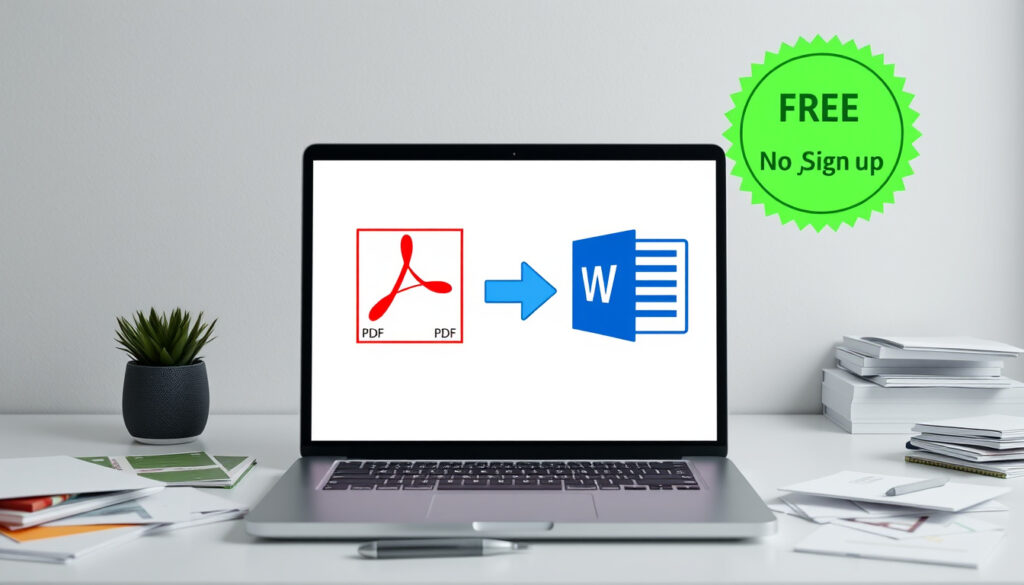
PDF to Word Converter Free: The Best No Sign Up Tools
You hit a PDF you need to edit, and suddenly you’re hunting for a tool that won’t charge you, watermarks your file, or demands you create an account just to upload it. Turns out, there’s a solid group of free online converters that handle that job without any of those hassles. The trick is knowing which ones actually deliver editable Word output without a catch—and which ones just look convincing in a search result.
Accuracy: nearly 100% (iLovePDF) · No Sign-Ups: Yes (Smallpdf) · No Watermarks: Yes (Smallpdf) · Scanned PDF Support: Yes (CamScanner) · Secure Processing: Yes (all top tools)
Quick snapshot
- Top free tools require no signup for basic use (Smallpdf)
- File size limits range from 50MB to 1GB depending on the platform (FreeConvert)
- Several tools support OCR for scanned PDFs (HiPDF)
- Exact daily conversion limits per tool remain unclear
- Independent accuracy benchmarks are scarce
- Support for password-protected PDFs varies
- Multiple tools now offer browser-based conversion with no installation
- Pro upgrades for unlimited use becoming standard (Smallpdf 7-day trial, Nitro 14-day)
- More tools adding AI-powered conversion for complex layouts
- Privacy features improving with on-device processing options
| Label | Value |
|---|---|
| Top Tool | iLovePDF |
| Free Tier Limits | Unlimited basic use |
| Scanned Support | CamScanner excels |
| No Signup Option | Smallpdf |
PDF to Word Converter Free No Sign Up
The no-signup crowd is where the best deals hide. Smallpdf, DeepPDF, and HiPDF all let you upload a file and convert it immediately—zero account creation, no email required. That’s not a small thing when you’re working with sensitive documents and don’t want another service holding your data.
Top No-Signup Tools
- Smallpdf — Free PDF to Word conversion without signup, no watermarks, preserving fonts, formatting, and layouts (Smallpdf official site). Works on Mac, Windows, iOS, Android through any browser.
- DeepPDF — AI-powered converter, no sign-up, max 50MB file size, processes on device for privacy (DeepPDF).
- HiPDF — Free no sign up, OCR for scanned PDFs, deletes files after 1 hour (HiPDF). Works on Mac, Windows, mobile.
- GoNitro — Free, no registration, drag-and-drop, works on Windows, Mac, mobile (GoNitro). Basic conversion is free; Pro features have a 14-day free trial.
FreeConvert handles up to 1GB files with 256-bit SSL encryption, but most no-signup tools cap out between 50MB and 100MB. If you’re working with large research documents, check the limit before you upload.
Conversion Process
The workflow is nearly identical across these tools: drag your PDF onto the browser window, wait for the upload to complete, click convert, then download the Word file. Smallpdf produces standard DOCX output editable in Microsoft Word and Google Docs (Smallpdf). DeepPDF keeps formatting intact while adding on-device processing for extra privacy (DeepPDF).
The implication: for casual or one-off conversions, the no-signup route is usually the right call. The trade-off is that you’ll face stricter file size limits than you would with a registered account.
PDF to Word Converter Free Offline
Browser-based tools dominate the free conversion space, but offline options exist for those who need them. PDFgear offers both an online converter and a downloadable app that works without an internet connection (PDFgear). This matters if you’re handling documents on a restricted network or just prefer keeping your files local.
Desktop Software Options
- PDFgear Offline App — Batch conversion and large file support without sign-up (PDFgear). OCR included.
- LibreOffice Draw — Open-source option that exports PDFs to editable formats. No internet required, no account needed.
- Microsoft Word (built-in) — Recent versions open PDFs directly and attempt to convert them to editable text. Works offline but accuracy varies with complex layouts.
Limitations of Offline Tools
Offline converters typically lag behind their online counterparts in layout recognition. You’ll lose some formatting nuance, especially with multi-column documents or embedded graphics. PDFgear’s offline app is the strongest exception—it includes OCR and handles batch jobs, but you’ll need to install software first (PDFgear).
The pattern: offline tools trade some accuracy for control. If your PDFs are straightforward text documents, the difference is negligible. Complex visual layouts usually fare better online.
Convert PDF to Editable Word
The core question isn’t just whether you can convert a PDF—it’s whether the resulting Word file actually lets you edit. Some converters output text-only files that lose all the structure. The good ones preserve fonts, paragraph breaks, bullet lists, headers, and even embedded images.
Steps for Editable Output
- Open your PDF in a browser-based converter like iLovePDF or Smallpdf.
- Select “Convert to Word” or “PDF to DOCX.”
- Wait for processing—iLovePDF claims nearly 100% accuracy powered by Solid Documents (iLovePDF).
- Download the .docx file and open it in Microsoft Word or Google Docs.
- Check that formatting transferred: fonts, spacing, bullet points, tables.
iLovePDF delivers nearly 100% accuracy for editable outputs, according to its official documentation. Smallpdf preserves fonts, formatting, and layouts in its conversions—both are solid choices when editability is your priority.
Formatting Preservation
Not all converters handle formatting equally. iLovePDF and Smallpdf sit at the top for layout fidelity. DeepPDF and PDFgear include OCR capabilities, which means they can extract text from scanned PDFs that would otherwise come out as image-only files (DeepPDF). PDFgear caps online conversions at 100MB per file but offers an offline app with higher limits (PDFgear).
What this means: if your PDF has tables, multi-level headers, or columns, pick a tool known for formatting preservation. For simple memos or forms, almost any converter will do the job.
Adobe PDF to Word Converter Free
Adobe makes the official PDF spec, so its converter carries a certain authority. The company’s online tool at adobe.com/acrobat converts PDFs to Word, and the conversion quality is solid. There’s one wrinkle: Adobe requires sign-in for full editing features in its web interface (Adobe official site). For users dead-set against any account creation, this puts Adobe in a awkward spot.
Features and Limits
- Cross-platform support: Mac, Windows, iOS, Android, Linux browsers (Adobe)
- Solid conversion quality backed by Adobe’s document expertise
- Sign-in required for editing features—this is a significant limitation for no-signup seekers
How to Use
Visit adobe.com/acrobat/online/pdf-to-word.html, drag your file onto the page, and click convert. You’ll get a Word file in seconds. The tool works in any modern browser, but you’ll need an Adobe account to access the full feature set. If you’re already in the Adobe ecosystem—whether through Creative Cloud or a free account—the friction disappears.
The trade-off: Adobe offers authoritative conversion backed by the PDF’s original creators, but its sign-in requirement undermines the “free without signup” promise. For that reason, it ranks below Smallpdf and iLovePDF for users prioritizing zero-account workflows.
PDF to Word Converter Free Reddit
Community discussions on Reddit offer a real-world filter that official marketing pages can’t match. Users share experiences with specific tools, flag hidden limits, and point out which converters fail on particular PDF types. The patterns that emerge from these discussions often contradict what the services claim.
User Recommendations
Reddit threads frequently highlight Smallpdf and iLovePDF as reliable free options. CamScanner earns praise for handling scanned documents—something many converters struggle with. HiPDF and PDFgear come up when OCR features are needed. A YouTube tutorial confirms Smallpdf, Google Docs, and Microsoft Word as the most common free methods people actually use (YouTube tutorial – Steven Bradburn).
Common Warnings
- Watermark traps: Some “free” converters add watermarks to output files—verify before you convert.
- File size surprises: Tools that advertise free conversion sometimes quietly cap file sizes or impose daily limits.
- Privacy assumptions: Users often assume browser-based tools are private by default. HiPDF explicitly deletes files after 1 hour (HiPDF), but most services don’t state their data retention policies clearly.
Community feedback fills gaps that official documentation leaves open. Reddit discussions reveal that the gap between “free” and “fully free” includes watermarks, hidden limits, and privacy policies that aren’t always obvious on the converter’s homepage.
Comparing Top Free PDF to Word Converters
Ten tools, five key dimensions—one clear picture emerges.
| Tool | No Sign-Up | OCR Support | Max File Size | No Watermarks | Privacy Feature |
|---|---|---|---|---|---|
| Smallpdf | Yes | No | — | Yes | Standard |
| iLovePDF | Yes | No | — | Yes | Standard |
| DeepPDF | Yes | Yes | 50MB | Yes | On-device processing |
| HiPDF | Yes | Yes | — | Yes | Auto-delete after 1 hour |
| PDFgear | Yes | Yes | 100MB (online) | Yes | Offline app available |
| GoNitro | Yes | No | — | Yes | Standard |
| FreeConvert | Yes | No | 1GB | Yes | 256-bit SSL |
| PDF24 | Yes | No | No limits | Yes | Standard |
| CamScanner | Yes | Yes | — | Yes | Standard |
| Adobe Acrobat | No (sign-in required) | Yes | — | Yes | Standard |
Technical Specifications
Five numbers that separate the contenders from each other.
| Specification | Value |
|---|---|
| DeepPDF max file size | 50MB |
| PDFgear max file size (online) | 100MB |
| FreeConvert max file size | 1GB |
| HiPDF file retention | 1 hour before deletion |
| Nitro free trial duration | 14 days |
| Smallpdf free trial duration | 7 days |
| iLovePDF accuracy claim | Nearly 100% |
| PDF24 free tier limits | No limits |
Pros and Cons
Upsides
- Most tools work entirely in-browser with no software to install
- Smallpdf, iLovePDF, and DeepPDF require no account for basic conversions
- Several tools (HiPDF, PDFgear, CamScanner) handle scanned PDFs via OCR
- Privacy features like on-device processing and auto-deletion protect your files
- PDF24 offers genuinely unlimited free use with no sign-up
Downsides
- Adobe—the most authoritative name—requires sign-in for editing features
- File size caps (50MB–100MB on most tools) limit large document conversions
- Offline tools generally lag in accuracy compared to cloud-based converters
- Complex layouts and multi-column PDFs often lose formatting regardless of tool choice
- Exact daily conversion limits aren’t always disclosed upfront
How to Convert a PDF to Editable Word
- Pick your tool. For pure editability without signup, Smallpdf or iLovePDF are the strongest choices. Need OCR for scanned PDFs? Go with HiPDF or CamScanner.
- Check file size. FreeConvert (1GB) handles the largest files, but most tools cap at 50–100MB. PDFgear offers an offline app for files above its online limit.
- Upload and convert. Drag the PDF onto the converter’s page, select Word output, and wait for processing to complete.
- Download and verify. Open the resulting DOCX in Microsoft Word or Google Docs. Check that fonts, tables, bullet points, and images transferred correctly.
- Fix any formatting issues. If the converter mangled a table or lost specific fonts, try an alternative tool—conversion quality varies enough that a second attempt with a different service often produces better results.
Free converters prioritize convenience over completeness. For standard business documents, the results are nearly indistinguishable from paid software. For PDFs with complex visual layouts, a paid converter or manual reformatting may still be necessary even with the best free tool.
What We Know and What We Don’t
High-confidence facts anchor this comparison. What remains uncertain shapes your expectations.
- Top free tools are genuinely free for basic use (verified across Smallpdf, iLovePDF, HiPDF, PDF24, GoNitro)
- No watermarks on output files for all tools in this comparison
- Several tools support OCR for scanned/image-based PDFs
- Adobe requires sign-in for full editing features
- Exact daily conversion limits aren’t publicly disclosed for most services
- Independent accuracy benchmarks comparing all tools are scarce
- Support for password-protected PDFs varies and isn’t always documented
- User review data and complaint patterns aren’t systematically tracked
Convert PDF to Word online for free. Turn your PDFs into fully editable Word documents in seconds. No signup required, no watermarks.
— Smallpdf (Official Site)
This AI PDF to Word converter is free to use with no sign-up required.
— DeepPDF (Official Site)
PDF to Word conversion is fast, secure and almost 100% accurate.
— iLovePDF (Official Site)
Summary
For most people most of the time, Smallpdf or iLovePDF hits the sweet spot: no signup, no watermarks, solid formatting preservation, and free basic use. iLovePDF edges ahead on accuracy claims, while Smallpdf wins on simplicity and cross-device accessibility. If you’re working with scanned documents, HiPDF or CamScanner handles OCR where the others don’t. Need to convert a massive file without creating an account? FreeConvert’s 1GB ceiling outpaces everyone else. PDF24 is the outlier that genuinely offers unlimited conversions with zero strings attached.
For users prioritizing the no-signup requirement above all else, the choice is clear: stick with Smallpdf for everyday conversions, keep HiPDF or CamScanner as a backup when OCR is needed, or default to FreeConvert for large files. Adobe’s authoritative name doesn’t justify its sign-in requirement for this use case.
Related reading: free online converters like currency tools · best free translation tools
Related coverage: National Journals no-signup roundup fördjupar bilden av Free PDF to Word Converter: Best No-Signup Tools.
Frequently asked questions
Does a free PDF to Word converter preserve layout?
Most reputable converters—Smallpdf, iLovePDF, GoNitro—preserve fonts, formatting, and layouts well. For complex multi-column documents or heavily designed PDFs, some formatting may shift. Testing with your specific PDF type is the only way to be certain.
How long does PDF to Word conversion take?
Most browser-based converters process standard documents in seconds. Large files (50MB+) may take 30–60 seconds depending on your connection speed and the service’s load. FreeConvert’s 1GB capacity means very large files take longer to upload and process.
Are free converters safe for sensitive files?
Safety varies. DeepPDF processes files on-device for privacy. HiPDF auto-deletes files after 1 hour. FreeConvert uses 256-bit SSL encryption during transfer. That said, most services don’t publish detailed data retention policies—assume your file exists on their servers until it’s deleted.
Can I batch convert PDFs to Word for free?
Batch conversion is typically a paid feature. PDFgear’s offline app supports batch jobs without sign-up, which is one of the stronger free options for multi-file workflows.
What if the free converter fails on complex PDFs?
Try an alternative tool—conversion quality varies significantly between services for complex layouts. If no free converter produces acceptable results, consider whether the PDF’s original formatting needs to be preserved or whether manual reformatting in Word is faster.
Do free tools support Mac and Windows?
All browser-based converters in this comparison work on Mac, Windows, and typically mobile browsers too. Smallpdf, iLovePDF, HiPDF, and Adobe work across any modern browser regardless of operating system. PDFgear adds an offline desktop app for users who prefer installed software.
How to fix formatting issues after conversion?
Check tables, bullet points, and embedded images first—these are the most common casualties. Copy the text into a new Word document if the formatting is severely broken. For persistent issues, try a second converter (different engines handle different layout types better) or reformat manually.
More related posts
 What Kills Cold Sores Instantly – Proven Ways to Speed Healing
 Maximum Delay in Periods if Not Pregnant – When to Worry
 Cast of North of North – Complete Actors List and Roles Guide
 Jeans for Women: Trends, Fit & Age Guide 2025
 Jesus Christ: Facts, Teachings, and Historical Evidence
 Lilly Singh: Gender, Career, Net Worth, Controversies
 Indira Gandhi Assassination: Reason, Last Words, and Aftermath
 Vegas Matt Net Worth 2026: Income, YouTube Earnings & Career